Harvey for Microsoft 365 Copilot
Use Harvey inside Microsoft 365 Copilot and Cowork to power legal work within the Microsoft workflow lawyers already use.
Last updated: Jun 15, 2026
Overview
With Harvey for Microsoft 365 Copilot, you can query @Harvey directly in Copilot chat or access the Harvey agent from the sidebar in the Copilot app. Use the Harvey agent to ask legal questions, analyze documents, and retrieve content from Harvey Vault without leaving Microsoft 365. When a question turns into a larger task, you can continue your thread in Harvey's web app for advanced reasoning and work product refinement.
When using Harvey for Microsoft 365 Cowork, you can orchestrate longer, multi-step tasks across the Microsoft 365 suite. Within Cowork, you can ask to draft documents, decks, workbooks, Teams messages, and Outlook emails all while utilizing Harvey content and intelligence.
Note: Currently, Harvey for Copilot and Cowork can only be enabled for US-based Harvey instances.
Key features:
- Access Harvey in your Copilot chat by querying
@Harveyin Copilot across Microsoft 365 apps such as Word, Excel, Outlook, and more. - Use Harvey within Cowork to power multi-step legal workflows, including generating Word documents, drafting Outlook emails, and sending Teams messages.
- Query content directly from your vaults and knowledge sources within a Copilot conversation to surface precedent deals and negotiation positions or answer domain-specific legal questions.
- Continue in Harvey from any Copilot thread for deeper analysis and work product refinement.
Workspace Admins: Enabling Harvey for Copilot
Harvey for Copilot must be enabled within both Harvey and the Microsoft 365 admin center before it’s available to your users. For most workspaces, the Copilot integration is enabled by default within Harvey but still requires enablement within the Microsoft 365 admin center.
Enable the Copilot Agent in Harvey
- Go to Settings → Ecosystem.
- Find the listing for Copilot Agent and enable it using the toggle switch.
- Choose permissions for specific roles and users to finish enabling the integration.

Install the Harvey Agent in the Microsoft 365 Admin Center
- From the sidebar in the Microsoft 365 admin center, select Agents → All agents.
- Search for “Harvey” and select the Harvey agent from the list.

- Select Install.
- Under the Users tab, choose who can install the Harvey agent in your organization.

You can make the Harvey agent available to your users via the Installation or Availability options.
- With Installation, the Harvey agent is added for the user automatically and is immediately available in the list of agents.
- With Availability, the Harvey agent is visible to the user in the list of available agents, but still needs to be manually installed.
We recommend making the agent available via Installation for easiest access.
You can find more information on managing agents in Microsoft’s article: Agent management in Microsoft 365 admin center.
Adding the Harvey Agent to Copilot
- Open M365 Copilot and select Agents → More Agents.
- Search for “Harvey” and select the Harvey agent from the list.
- Select Add to add the agent to Copilot.

The Harvey agent is now available for use in Copilot chats across Microsoft 365, as well as within Cowork.
When you first attempt to use the Copilot or Cowork integration, you will be prompted to authenticate with Harvey. After doing so, the integration is fully set up.

Using the Harvey Agent in Copilot
There are two ways to access Harvey within Copilot:
- In the sidebar of the Copilot app, select Agents → Harvey to a new chat with the Harvey agent, or:
- In a Copilot chat within a Microsoft 365 app, type
@Harveyto interact with the Harvey agent.
Within a Copilot chat, the Harvey agent can query Harvey and find an answer without leaving the Microsoft 365 suite. You can use Harvey in Copilot to:
- Ask a general Assistant query to Harvey.
- List your vaults within Harvey and ask about content within the vaults.
- List your available knowledge sources and ask about knowledge source content.
When the Harvey agent returns a response, you can select its citations to open the source directly within Harvey. Additionally, you can select Continue in Harvey to continue your thread within the Harvey web app.
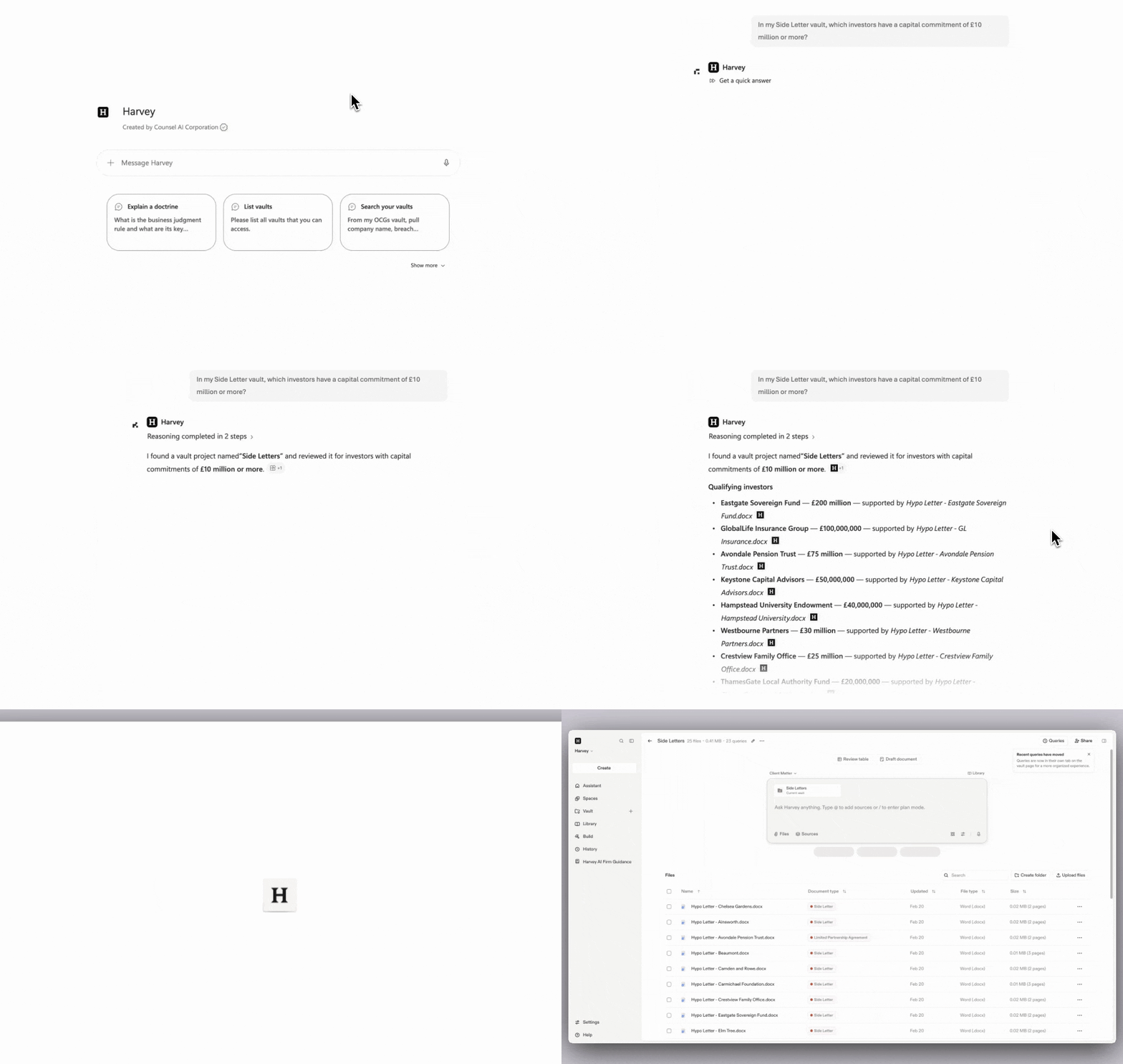
Example use cases:
- In Excel, use Harvey for Copilot to pull key terms from multiple agreements across a Vault project and build a structured comparison workbook (e.g. side-by-side fee structures, termination rights, or liability caps).
- In PowerPoint, ask Harvey to summarize a transaction, litigation matter, or regulatory issue and structure it as a presentation outline, ready to build as a new presentation.
Using the Harvey Agent in Cowork
You can also use the Harvey agent to inform longer, multi-step tasks within Cowork and execute end-to-end legal workflows without leaving Microsoft 365.
- In your Cowork prompt, select + (Add attachments).
- Select Manage plugins.
- Enable Harvey in your plugin list.
The Harvey agent within Cowork has the same capabilities as the agent within Copilot, with expanded functionality:
- Create new files, such as Excel worksheets or Word documents, based on your queries to the Harvey agent.
- Write a new Outlook email or send a Teams message with information from the Harvey agent.

Example use cases
- Draft an NDA with specific jurisdiction, term, and carve-out requirements, and deliver it as a .docx file.
- Write a message draft to coworkers on Teams that cover your litigation strategy or answer key questions.
- While running opposition research, identify the strongest arguments in a brief, surface gaps, and draft a counterargument outline, delivered as a draft email directly in Outlook.
Notes and Limitations
- Attaching files in Copilot will send an abridged version of the document to Harvey rather than the full document. If you want to analyze a full document with Harvey, we recommend submitting that query in the Harvey app.